Remove Anything logo

Remove Anything

AI Object Remover

Pricing
Loading account...

VIDEO WATERMARK REMOVER

Remove Video Watermarks with AI

Remove watermarks, logos, text, subtitles, mosaics, people, and unwanted objects from videos with AI. Clean results with no blur, no trace, and a simple upload workflow.

Upload Video

Drag and drop or select a local file to create a new task card below.

Ready for your next upload

AI VIDEO CLEANUP

Remove More Than Watermarks

Erase watermarks, text, people, logos, and any unwanted objects from your videos. AI reconstructs the hidden pixels so the finished footage looks clean instead of patched.

Core advantage

No Blur. No Trace.

Powered by an AI video generation model, erased areas are automatically reconstructed with no visible removal traces.

Other removers often cover the watermark with a soft patch, mosaic, or smeared texture. Our workflow predicts what should appear behind the watermark, fills it frame by frame, and blends the result with the surrounding motion, color, and lighting.
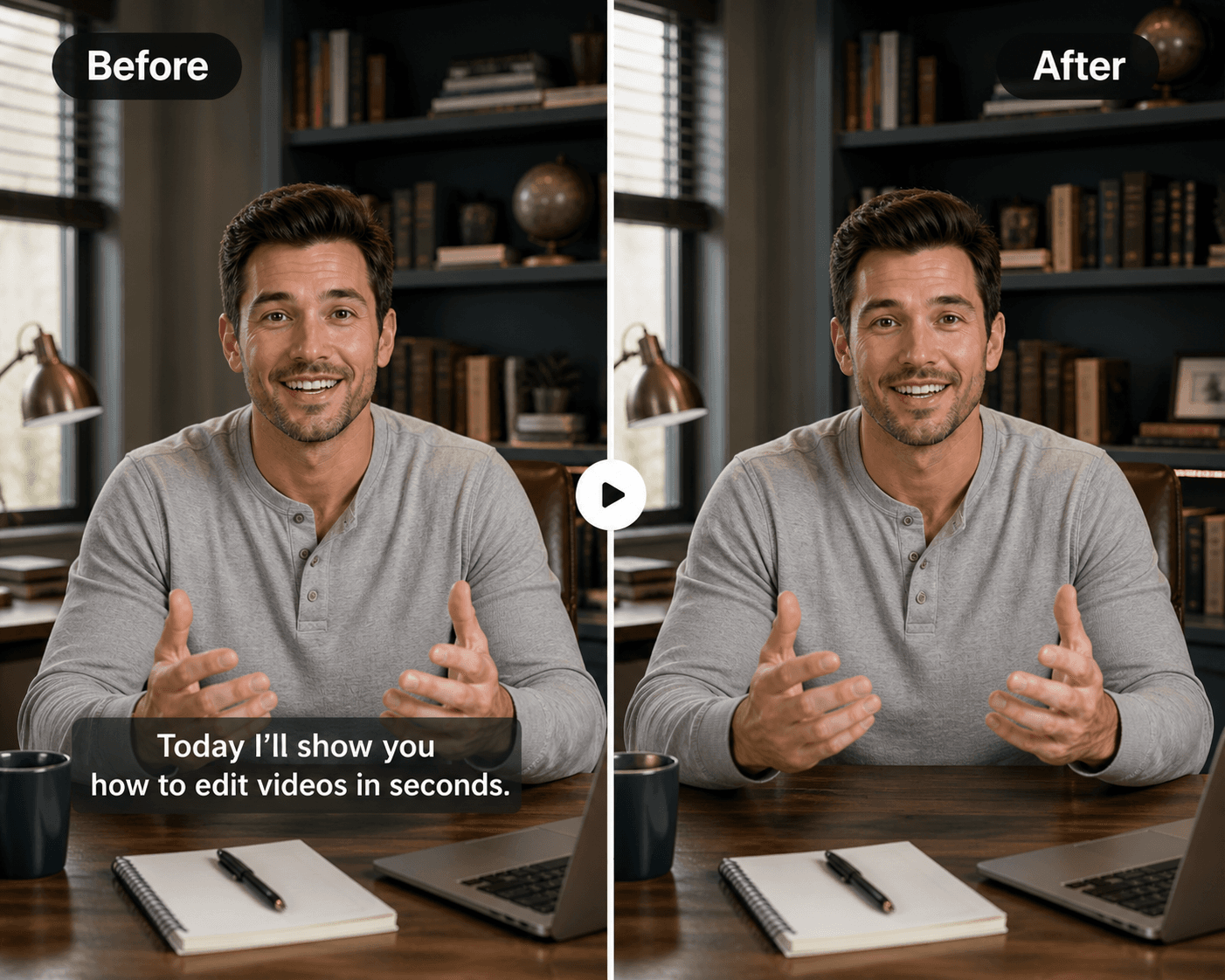
Remove Text and Subtitles

Remove hardcoded subtitles, captions, timestamps, usernames, and social handles, then let AI rebuild the background behind every character.

Remove Text and Subtitles preview

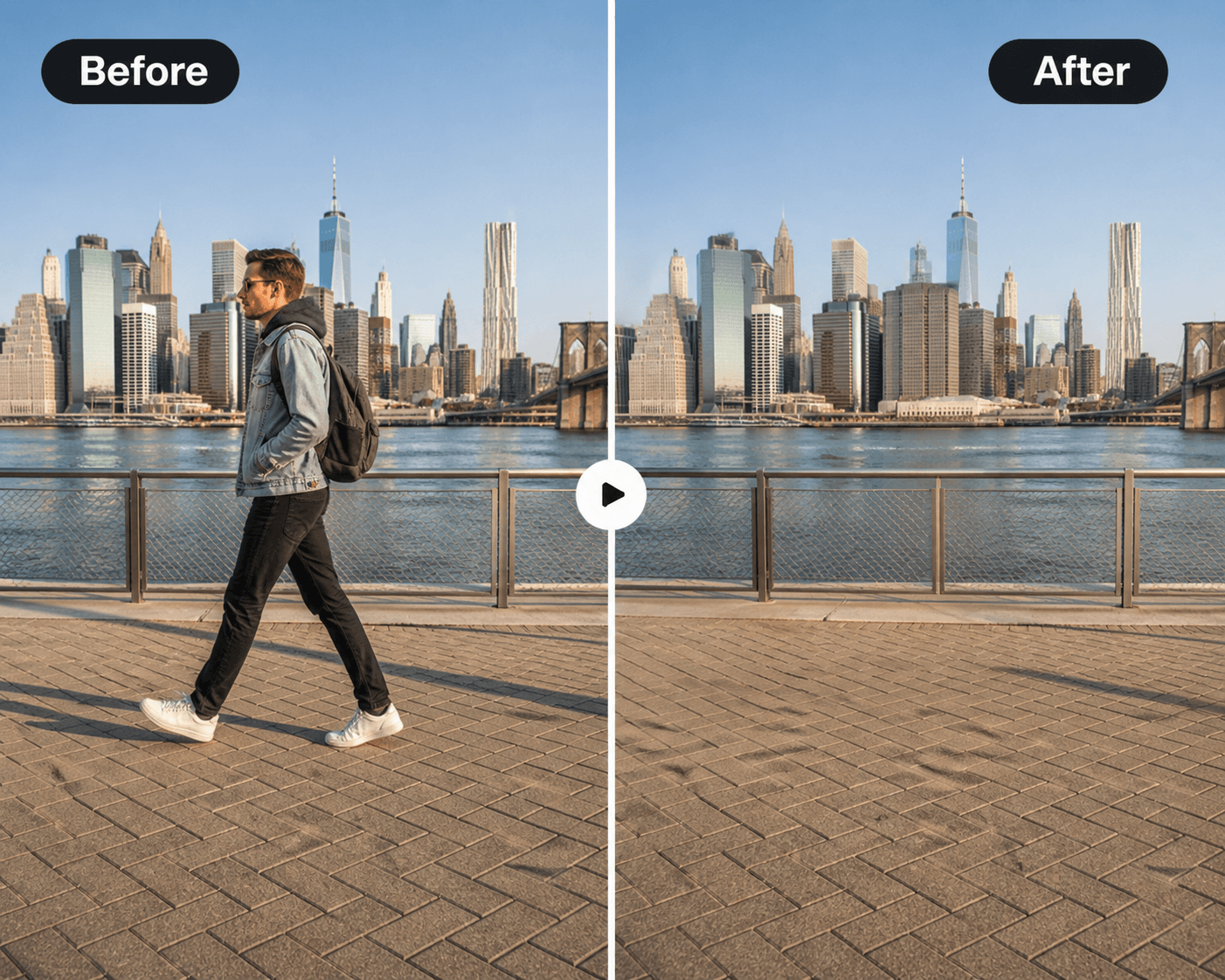
Remove People

Take unwanted people out of travel clips, street shots, events, and creator videos. The surrounding scene is regenerated so the edit feels natural.

Remove People preview

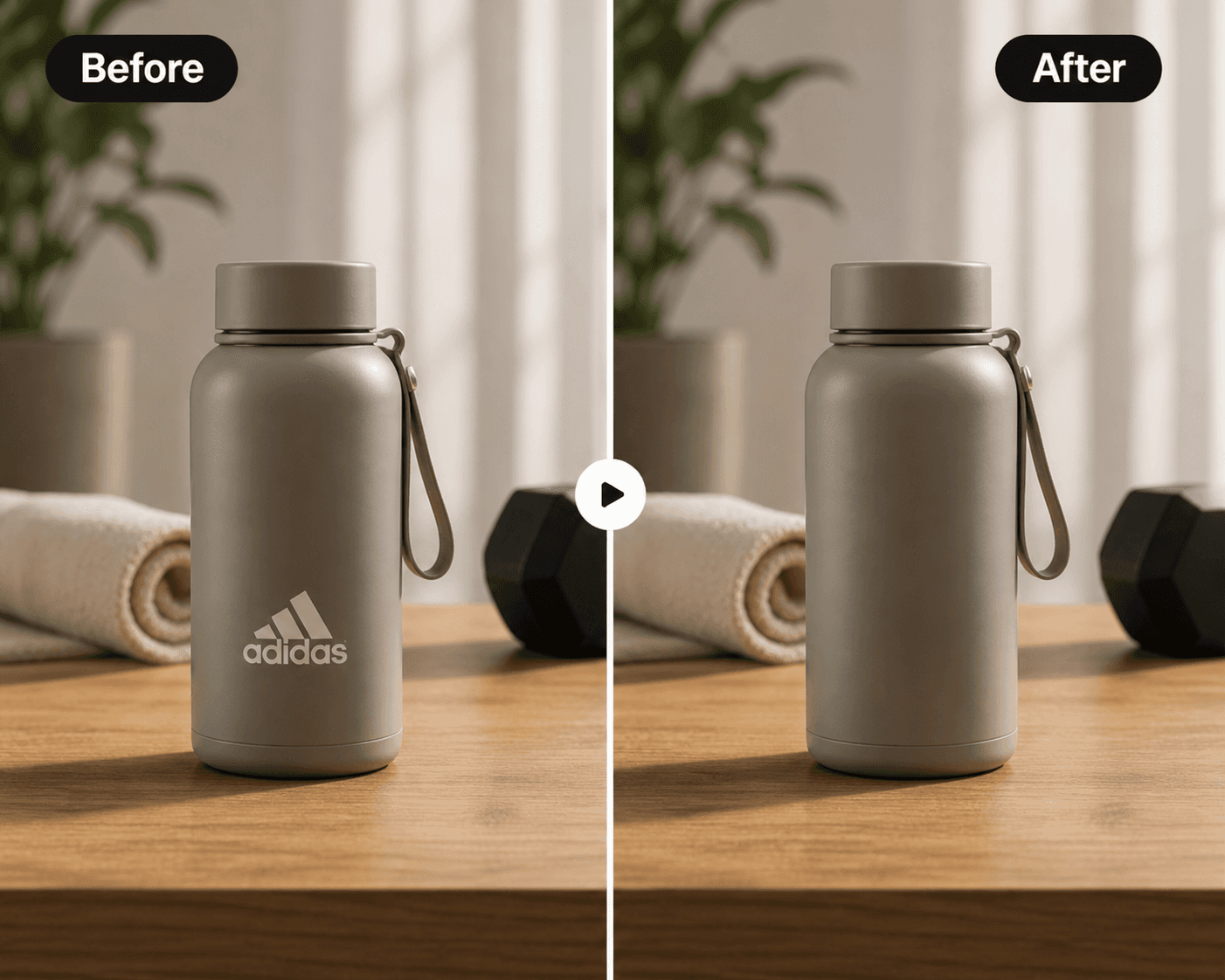
Remove Logos

Erase brand logos, channel marks, product labels, stickers, and visual distractions without leaving obvious repair marks on the footage.

Remove Logos preview

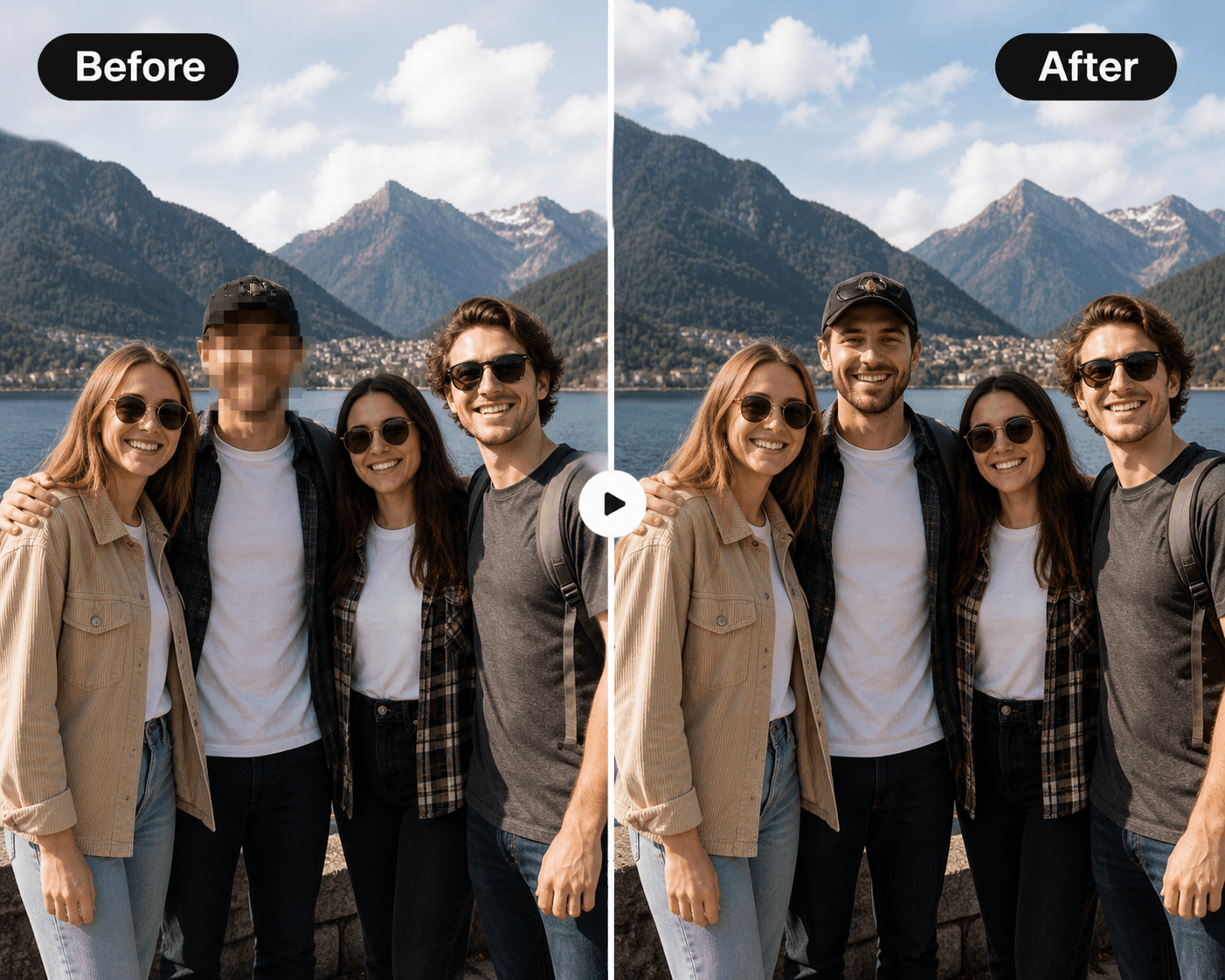
Remove Mosaic

Remove hardcoded mosaic and censor blocks from videos, then let AI rebuild the hidden scene so the repaired area blends back into motion, texture, and lighting.

Remove Mosaic preview

HOW IT WORKS

How to Remove a Watermark from Video Online

Keep the workflow simple: upload your clip, tell Remove Anything what should disappear, then review the AI-repaired result.

Step 1

Upload Video

Drag and drop a short video or choose a local file to start a new AI cleanup task.

Step 2

Choose What to Remove

Target watermarks, logos, text, subtitles, mosaics, people, or another unwanted area before processing.

Step 3

Preview and Download

Review the repaired video result and use the cleaned clip in your creator workflow.

EXPLORE WORKFLOWS

WHY REMOVE ANYTHING

No Blur. No Trace. Still a Product, Not a Content Farm.

The page supports search without pushing the actual tool out of the way. The uploader, task cards, and creator workflow remain the center of the experience.

  • No blur-first patches: the workflow is built around AI reconstruction.
  • Cleaner creator assets: remove more than watermarks from the same upload flow.
  • Simple browser workflow: upload, choose a target, process, and review.
  • Transparent limits: current uploads support videos up to 15 seconds.
  • Product-first experience: the uploader and task cards stay central instead of burying the tool below SEO copy.

FAQ

Video Watermark Remover FAQ

Can I try Remove Anything for free?+

You can start with the online upload workflow and review task details before processing. Final AI processing or exports may require credits or an active plan depending on your account.

What video formats work best?+

MP4 is recommended for the smoothest upload and preview experience. The uploader accepts common video files through your browser.

How long can my uploaded video be?+

The current workflow supports videos up to 15 seconds long. This keeps AI reconstruction fast, predictable, and easier to review.

Will the result look blurry?+

Remove Anything is designed around reconstruction rather than simple blur patches. The AI predicts and rebuilds hidden pixels so the repaired area can blend with surrounding motion, color, and lighting.
Can it handle moving or semi-transparent watermarks?+

The workflow is built for common creator cleanup cases, including logos, text, and watermark-like overlays. Results can vary by motion, opacity, background complexity, and how much of the scene is covered.

Can I remove subtitles, logos, mosaics, or people from video?+

Yes. Remove Anything includes focused entry points for text and subtitles, logos, mosaics, people, watermarks, and manual object cleanup.

Is my original video changed?+

No. The uploaded source is used to create a separate task and output. Your local original file is not modified by the web app.

What can I legally remove from a video?+

Use Remove Anything only on videos you own or have rights to edit. Do not remove watermarks, logos, or ownership marks from content you are not authorized to modify.